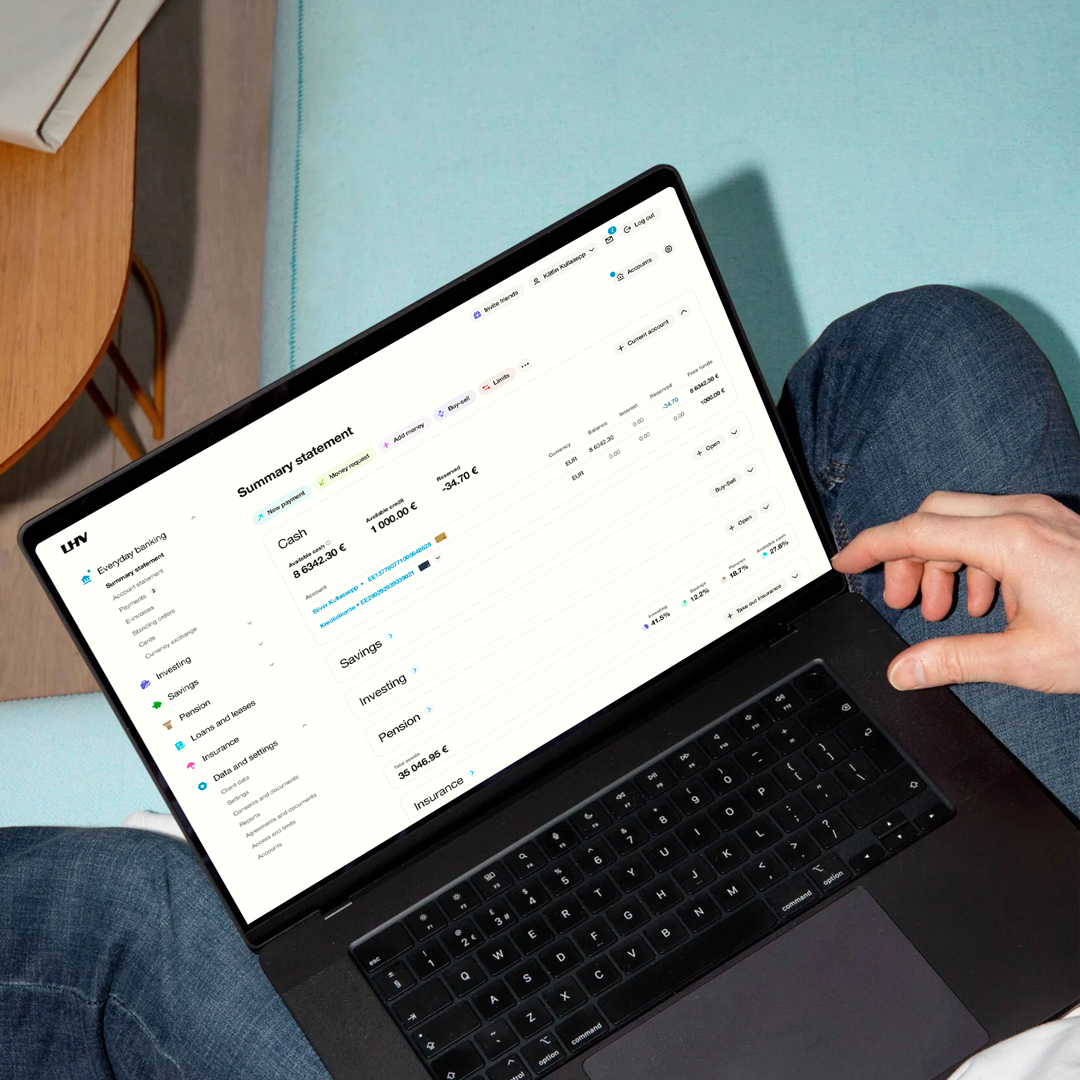
Since the end of November, Internet Bank has a new header, left menu and summary statement. The menu is now more compact: related functions have been grouped together and several familiar items have been moved to new locations. Here you’ll find an overview of where to look for what.
In designing the solution, we took into account the needs of both private and business customers and developed and tested it together with our customers. The update continues the changes that we started at the beginning of this year in the LHV mobile app. Following the menu and the summary statement, we will gradually roll out the new design to the rest of the Internet Bank.
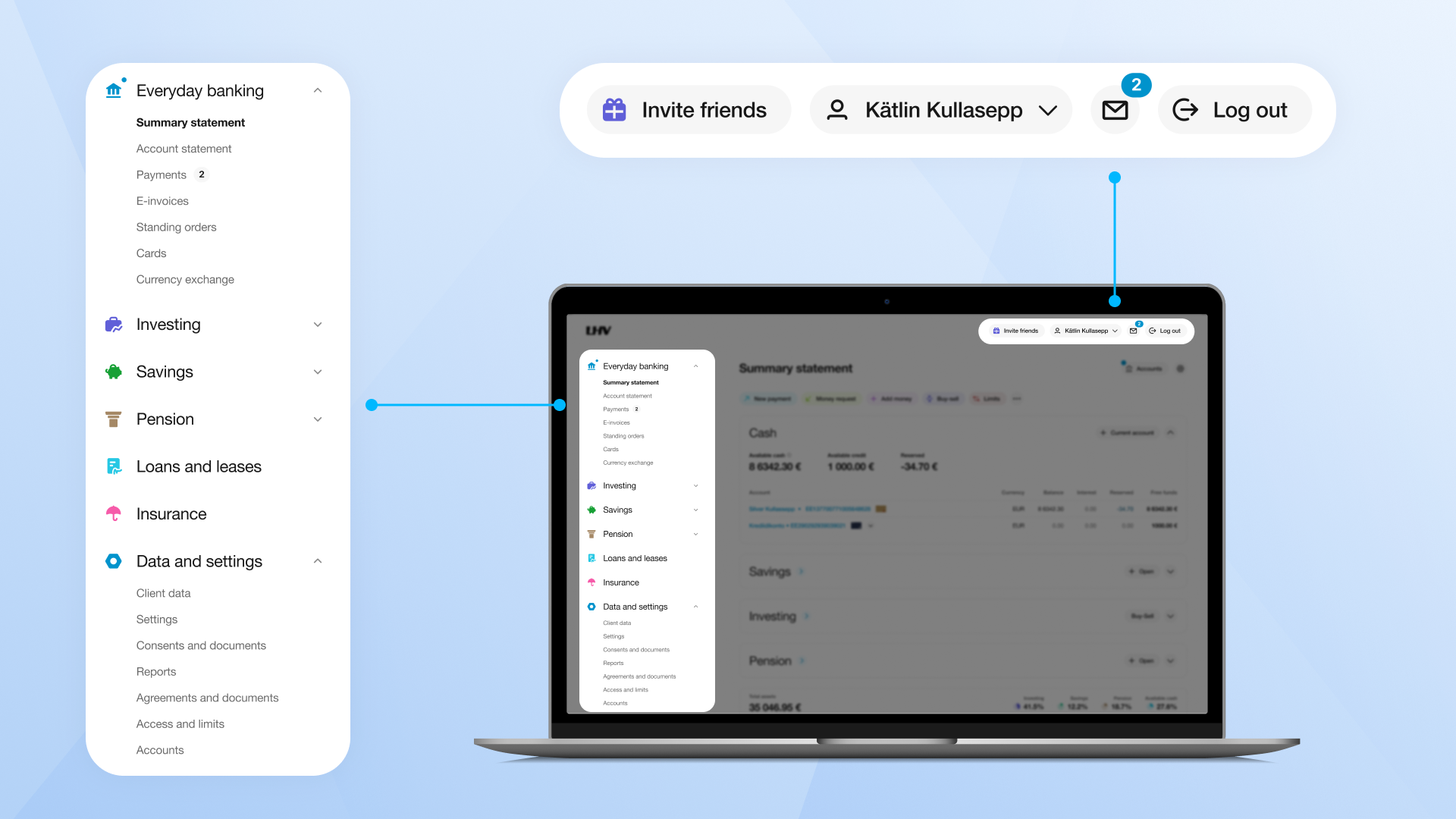
Header: you can now find almost all your personal settings under your profile
You still log in to the Internet Bank as a private person. In the menu that opens under the profile at the top right, you can change the role, i.e., choose a child or company account. If there are more than 10 roles, the search function will help you find the right one.
From here, you can view your customer segment and, with a single click, go to the ‘My Benefits’ page. Under your profile, you’ll also find ‘Settings’, ‘Access and limits’, the language selection and the log-out button.
Left-hand menu: six main areas
Over time, the menu had become rather long. Each section now shows one aspect of your financial life: Everyday banking, Investing, Saving, Pension, Loans and leases, and Insurance. At the very bottom are ‘Information and settings’.
Under ‘Everyday banking’, you can still carry out your daily transactions, such as checking your account balance and making payments, as well as viewing an overview of your accounts and cards.
‘My Investments’ brings together pending transactions, transaction statement, buys and sells, subscription of securities, securities transfers and corporate events on a single page. So you don’t have to jump between the pages.
‘Savings’ shows your deposits and savings accounts together, so you can see at a glance how close you are to your goal.
‘Loans and leases’ and ‘Insurance’ are clickable links; they do not have any sub-menus. On the ‘Loans and leases’ page, you can view your contracts and take out a new one. On the insurance page, you can take out a new insurance contract and report a claim.
We will display the tax report and investment account report in a visible place on the menu for the period of declaring your income. At other times, you can find them on the ‘Reports’ page.
The pension menu currently doesn’t change much. We will update the pension views and shorten the menu in the next phase.
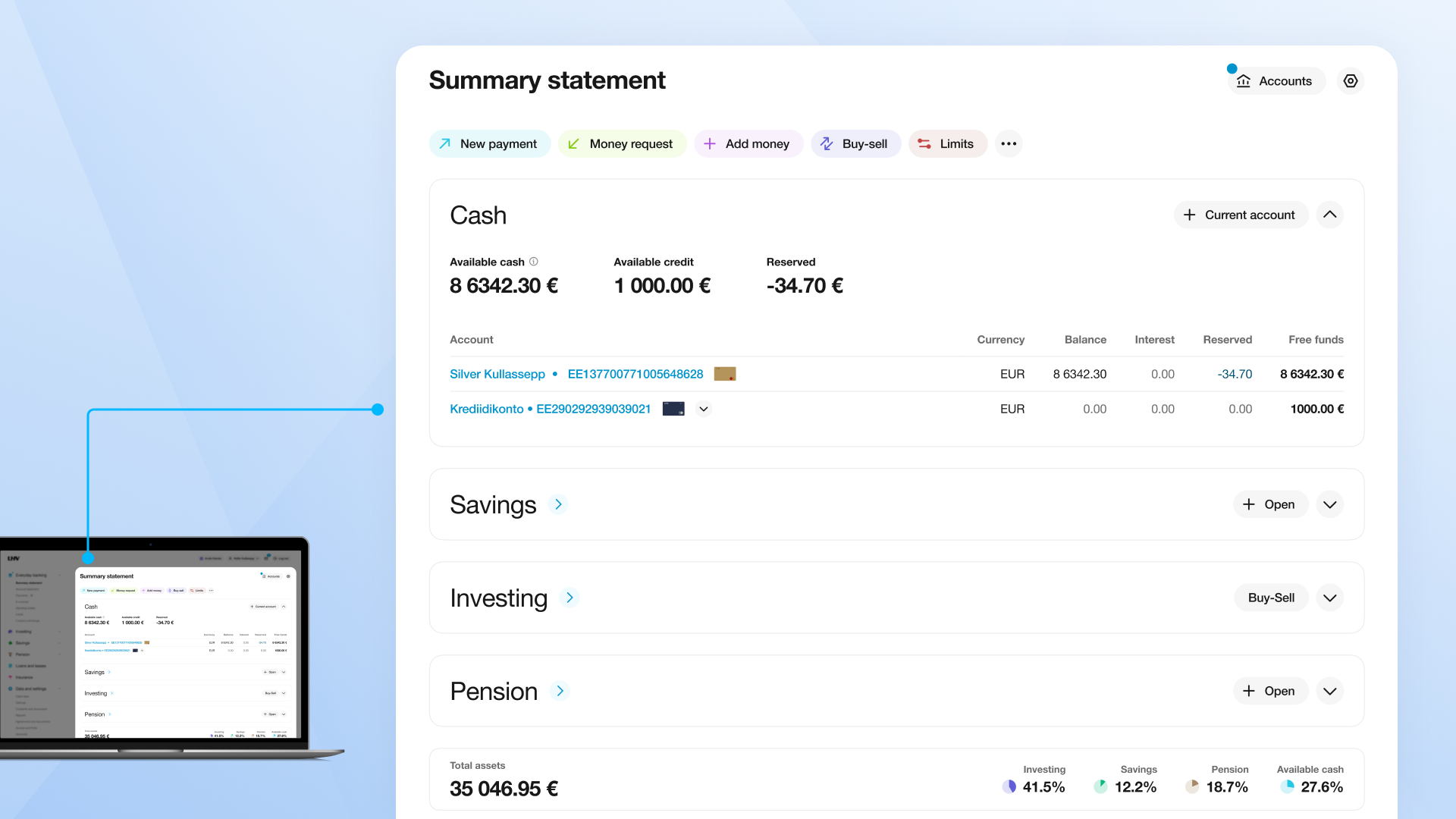
Summary statement: settings are in the header, leaving more space on the screen
In the summary statement view, the most important information is right in front of you, and there’s more space on the screen for whatever you’re currently working on. In the header of the summary statement, you will find:
- Behind the settings icon the date selection, quick links selection and the option to display amounts in euros or in the original currency. If you select a date in the past and a particular block is unable to display data for that date, we will display a notification there.
- Behind the ‘Accounts’ button a selection of accounts to see in the summary statement. If you have hidden any accounts, this is indicated by a blue dot on the filter. If you wish, you can change the order in which the accounts are displayed. After the update, accounts that you had previously hidden will reappear on the summary statement. In addition to hiding accounts, you can now also change the order in which accounts are displayed. The selections you have now made will be saved for future use.
- Quick links in the three-dot menu. You can now choose which quick links to display, or remove them all. The three-dot menu will then disappear as well.
The ‘Information and settings’ section at the bottom now features new menu items: ‘Reports’, ‘Consents and notifications’, ‘Contracts and documents’. We have moved the ‘Passwords’ page to the ‘Settings’ section, and you will now find the ‘Appropriateness test’ under ‘Investments’ in the ‘My Investments’ view.
Please provide feedback on the new Internet Bank. That way, together we can create solutions that are tailored precisely to your needs.